
Email:
info@epnetbd.com
Tel:+880 96434 24242
Phone:
+880 23333 80444 +880 17288 23923
Working Hours
365 Days 9am-11pm
Support Hours-24/7
Wondering why your video buffers, your calls freeze, or your downloads crawl? An internet speed test shows you what your connection is really delivering. In about a minute you can measure your download speed, upload speed, ping (latency), and jitter, then compare the result with the package you pay for.
Quick answer: To run an internet speed test, connect your device (ideally with a LAN cable), close other apps, pick a test below, and press Go. Compare the result in Mbps with your package speed. If it is far lower, follow the fixes in this guide or contact your Local ISP.
Different tools measure speed in slightly different ways, so it helps to try two or three and compare. Choose a test below:
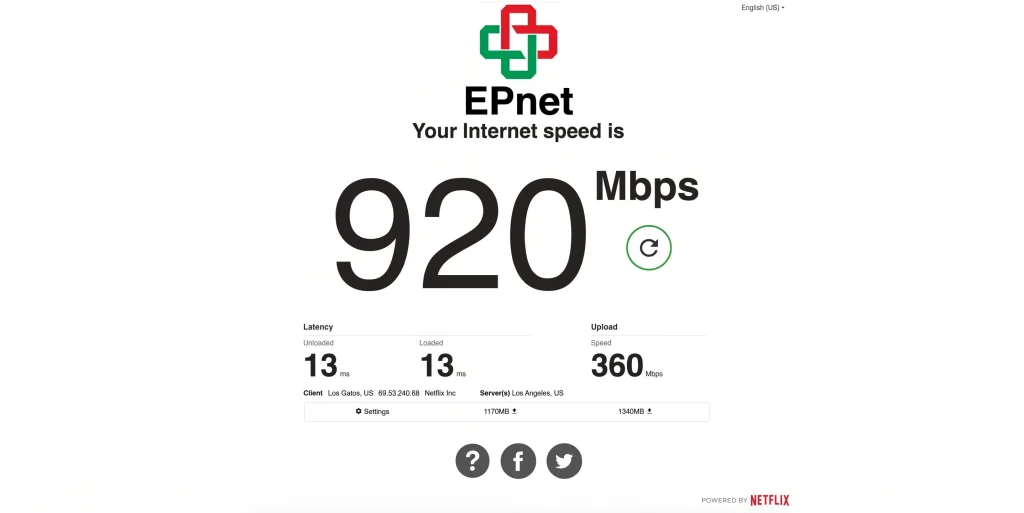
| Speed test tool | Best for | Site Link |
|---|---|---|
| Speedtest by Ookla | Full results: download, upload, ping, jitter, with many server locations | Start Speedtest by Ookla |
| Fast.com (by Netflix) | A quick check of the speed you get for streaming | Start Speedtest by Fast |
| Cloudflare Speed Test | Detailed latency, jitter and packet loss | Start Cloudflare Speed Test |
| Speed Test Bangladesh Online (BOL) | Local Bangladeshi | Start Bangladesh Online Speed Test |
These speed tests are run by independent third parties. EPNet is not affiliated with them, and results vary with your device, Wi-Fi, test server and time of day.
Live in Chittagong? Get reliable broadband internet service from EPNet today. You can get affordable internet packages with reliable support.
A speed test only tells the truth if you set it up properly. Follow these steps for a reliable result:
What we see in practice: When customers in Chittagong report slow internet, a speed test on a LAN cable often matches the package, while the same test over Wi-Fi in a far room is much lower. That is why we ask for a wired test first, before we check the line itself.
Download speed is how fast data comes from the internet to your device. It matters for streaming, browsing, app downloads, and online classes. It is measured in Mbps (megabits per second).
Upload speed is how fast your device sends data to the internet. It matters for video calls, uploading files, sending photos, live streaming, and working from home. On many home plans upload is lower than download, but fiber connections often give similar speeds both ways.
Ping is the time, in milliseconds (ms), that data takes to travel to a server and back. Lower is better. Under 30 ms is excellent, 30–60 ms is good for most uses, and above 100 ms can feel laggy in games and video calls.
Jitter is how much your ping changes from moment to moment. High jitter causes choppy calls and unstable gameplay even when your speed looks fine.
Packet loss means some data never arrives. Even 1–2% packet loss can cause freezing in calls and games. Some tests, like Cloudflare’s, show this value.
Internet packages are sold in Mbps (megabits per second), but file downloads on your phone or PC often show MB/s (megabytes per second). One byte is 8 bits, so divide Mbps by 8. A 100 Mbps connection downloads at about 12.5 MB/s at best, and a 50 Mbps connection at about 6.25 MB/s.
The speed you need depends on what you do and how many people share the connection. These are practical guidelines per activity:
| Activity | Recommended speed (per device or user) | Notes |
|---|---|---|
| Browsing and social media | 3–5 Mbps | Basic use works fine |
| HD video streaming (Netflix, YouTube) | About 5 Mbps | Netflix recommends about 5 Mbps for HD |
| 4K / Ultra HD streaming | About 15–25 Mbps | Netflix recommends about 15 Mbps for 4K |
| Video calls (Zoom, Google Meet) | 3–10 Mbps up and down | Upload speed and low jitter matter most |
| Online gaming | 10–25 Mbps with ping under 50 ms | Ping matters more than raw speed |
| Work from home and cloud tools | 20–50 Mbps | Add more for large file uploads |
Rule of thumb for a household: add up what each person does at the same time. A family with two people streaming HD movies, one on a video call, and one gaming needs roughly 30–50 Mbps, and 80–100 Mbps gives comfortable headroom for more devices.
It is normal for a result to be somewhat below the advertised speed. Large gaps usually come from one of these causes:
In Bangladesh, many ISPs offer BDIX (Bangladesh Internet Exchange), which keeps local traffic inside the country for faster speed and lower latency. Local content, local servers, and some local services may load much faster over BDIX than content that travels through international bandwidth. That is why a speed test against a Dhaka server can look different from one against a server abroad. If your local speed is great but international sites feel slow, the issue is often international bandwidth or routing, not your home Wi-Fi.
As a Chittagong-based broadband provider, EPNet works with local BDIX routes as well as international bandwidth, so we can help you tell whether a slow result comes from the route or from Wi-Fi inside your home.
Call your internet service provider if:
Have your package details, account ID, and screenshots of your speed tests ready, and mention whether you tested over cable or Wi-Fi.
Open a speed test tool such as Speedtest by Ookla, Fast.com, or Cloudflare Speed Test, and press the start button. In about a minute you’ll see your download speed, upload speed, ping, and jitter.
For most homes, 20–50 Mbps is enough for HD streaming, video calls, and browsing for a few people. Larger families, 4K streaming, and heavy gaming benefit from 50–100 Mbps or more.
No single test is perfect. Try two or three tools, use a LAN cable, and compare the averages. Tests that use a nearby server usually reflect your real connection better.
Many home plans give lower upload than download. Fiber plans often offer more balanced speeds. If upload is very low, check your package and test over a LAN cable.
Under 50 ms is good for most online games, and under 30 ms is excellent. High jitter or packet loss can still cause lag even with good ping.
Yes. 100 Mbps is enough for 4K streaming on several devices, video calls, and online gaming at the same time in most homes. Remember that it downloads files at about 12.5 MB/s at best.
Speed varies with server choice, peak hours, Wi-Fi signal, and other devices using the network. That is why you should test several times and average the results.
A LAN (Ethernet) cable is more stable and shows your true line speed. Wi-Fi is convenient but is affected by distance, walls, and interference.
Restart your router, move it to a central spot, switch to 5 GHz, remove unknown devices, and pause background downloads. These fixes cost nothing and often make a big difference.
Mbps means megabits per second and is used for internet packages. MBps (or MB/s) means megabytes per second and is used for file downloads. Divide Mbps by 8 to get MB/s.
Empowering Net (EPNet) is a broadband internet service provider (ISP) based in Chittagong, Bangladesh, serving homes and businesses in Chittagong. Founded in 2011, with one simple goal: to provide high-quality, affordable WiFi for everyone.